
This guide reflects features and settings reviewed in November 2026. Availability may vary by account, age, device, and school administrator.
Artificial Intelligence is being integrated into everyday digital tools, including those children use for school, communication, and entertainment. While parents may intentionally restrict AI chatbots, children may now be accessing them through apps their parents have already approved.
Common Sense Media’s 2026 report on Media and Tech Use in Tweens and Teens found that 49% of children aged 9-12 use AI, despite platform policies requiring users to be 13 or older. This raises the question: How are younger children accessing AI? Do their parents know?
As it turns out, popular education platforms, browsers, messaging apps, and writing tools now include generative AI capabilities – and many parents do not know.
As parents, we’re fighting for more than control over another technology. We’re fighting for our children’s opportunities to learn, to struggle, to persevere, to reason, to communicate, and to develop godly character. But to do this, we must know where the AI is hiding.
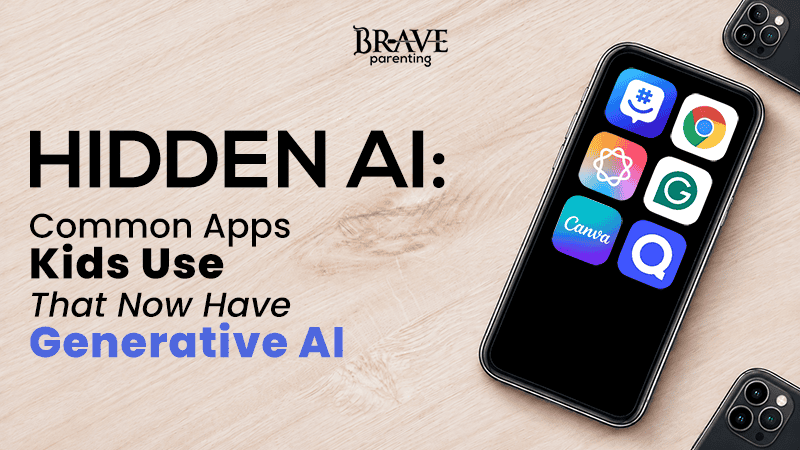
Here are 6 popular apps/platforms used by kids that have incorporated AI chatbots.
DOWNLOAD Full Chart of Hidden AI in Common Apps
 1. GroupMe – Microsoft Copilot
What is GroupMe?
GroupMe is a messaging application owned by Microsoft. It is frequently used by sports teams, extracurricular organizations, school clubs, and church youth groups to coordinate meetings, activities, and announcements. Parents often allow GroupMe when the child needs access to group communications, as it has long been seen as a safer alternative to Snapchat or WhatsApp.
What AI is built in?
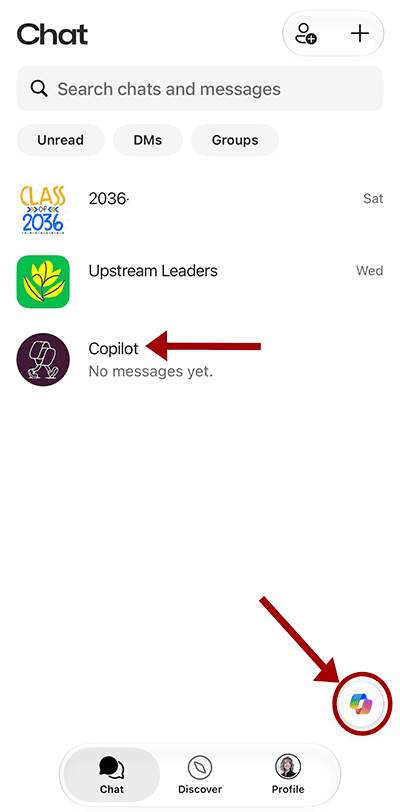 Microsoft has integrated its Copilot assistant directly into GroupMe. Copilot is a generative AI chatbot (similar to ChatGPT) capable of answering questions, writing content, generating images, and analyzing uploaded content.
What can a kid do with it?
Kids can initiate private, one-on-one conversations with Copilot without leaving GroupMe. They can get homework help, relationship advice, generate images, and continue conversations with follow-up questions. Copilot can also be mentioned within group conversations using @copilot to invite the chatbot to contribute.
Can parents disable it?
GroupMe includes a personal setting under Profile > Settings > Copilot. Toggling off this setting hides the Copilot feature for the user; however, it is not a password-protected parental control. A kid with access to the settings can turn the feature back on.
Group owners and administrators can restrict Copilot within their groups. Group Avatar > Settings > Permissions > Message Copilot > Nobody
This does not prevent private Copilot conversations in the app – only in that group.
Brave Parenting recommendation
If GroupMe is necessary for group communication, parents should ask group administrators to disable Copilot within the group. Parents must also turn off the individual Copilot setting and explain to the child that it is not an enforceable parental control, but that the expectation is for it to remain off.
Because private AI access remains possible without parental ability to reliably supervise those conversations, this app is not appropriate for families who prohibit AI chatbots or younger children. When possible, parents can receive group communications themselves or request an alternative communication method from the group coordinator.
 2. Google Chrome – Gemini
What is Google Chrome?
Google Chrome is one of the most widely used internet browsers. Whether for school or pleasure, kids use Chrome to access websites, online curriculum, research materials, school assignments, and everything they want to search for. Parents may consider Chrome an essential and practical educational tool rather than a platform that grants easy access to AI.
What AI is built in?
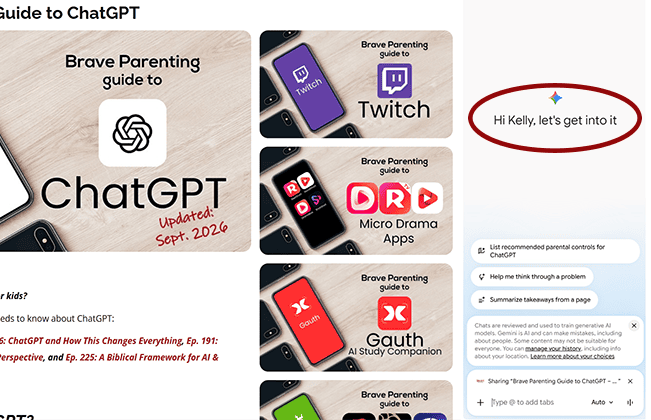
Google has integrated Gemini, its generative AI assistant, directly into Chrome. Gemini operates within the browser, providing AI assistance and chatbot interaction without requiring navigation to the standalone Gemini website.
What can a kid do with it?
Kids can use Gemini directly to ask questions, summarize articles, explain concepts, generate written content, compare information across webpages, and, equally, for advice and friendship.
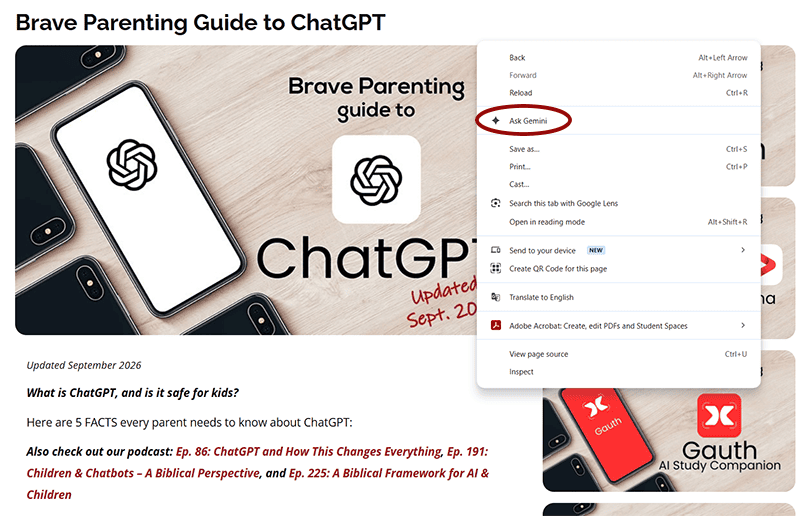
By right-clicking a webpage in Chrome, kids can ask Gemini to analyze or summarize its content (whether it is an online textbook or Reddit).
Can parents disable it?
Yes, through Google Family Link, as long as the child’s Google account remains supervised. (Google, however, requires that children 13+ permit their parents to supervise them!) Google states that parents can turn off Gemini in Chrome for supervised teens. It also states that, as a parent, you can grant a child under 13 access to Gemini.
Simply hiding the Gemini button in Chrome’s preferences is not the same as a parental restriction.
Brave Parenting recommendation
Parents should check whether Gemini is available on school-issued devices or through their school-established Google account. Contact school district administrators if Gemini is accessible and request that it be turned off. This may require strength in numbers.
If Chrome is your home’s default browser, ensure Gemini is turned off, and the proper supervision is set up through Family Link. Ensure the standalone Gemini website is also blocked (along with the other major chatbot websites). Test Gemini access often and review settings, as Google can change access without notification. Even then, as Common Sense Media has investigated, you may never fully block AI through Google Search.
 3. Apple Intelligence – Siri, Writing Tools, and ChatGPT
What is Apple Intelligence?
Apple Intelligence is Apple’s new collection of artificial intelligence features built into compatible devices. These features are integrated into the device’s operating system and can appear throughout commonly used apps.
What AI is built in?
Apple Intelligence includes generative Writing Tools, image creation, and integrations with OpenAI’s ChatGPT.
ChatGPT can be accessed through Siri requests (“Hey Siri, ask ChatGPT…”), Writing Tools, visual intelligence, and other Apple features. Most importantly, Apple’s ChatGPT integration does not require users to create or sign in to a ChatGPT account. Without an account, no teen filters are applied, and no conversational records are kept.
What can a kid do with it?
Kids can use the AI to compose or rewrite text, summarize information, generate images, and obtain answers to questions.
Writing tools can operate within supported apps, allowing for the generation and revision of written material without opening a separate AI chatbot.
Can parents disable it?
Yes! Apple Intelligence can be disabled within Screen Time. This is enforceable through a parent-controlled PIN.
Settings > Screen Time > Content & Privacy Settings > Intelligence & Siri
Parents can restrict Writing Tools (prevent access to AI writing assistance), Image Creation (restrict generative image features), and Intelligence Extensions (prevent access to third-party AI integration like ChatGPT).
Brave Parenting recommendation
Parents should review Apple Intelligence controls on every compatible iPhone, iPad, and Mac used by children.
Blocking the ChatGPT app download or the website does not remove ChatGPT capabilities with Apple Intelligence.
 4. Grammarly – Generative Writing Assistance
What is Grammarly?
Grammarly is a writing-assistance application historically known for identifying spelling, grammar, and punctuation issues. Many parents and educational institutions have permitted Grammarly because of those basic features that help students identify and correct mistakes in their own writing.
However, Grammarly has been enhanced with AI capabilities extending well beyond proofreading.
 What AI is built in?
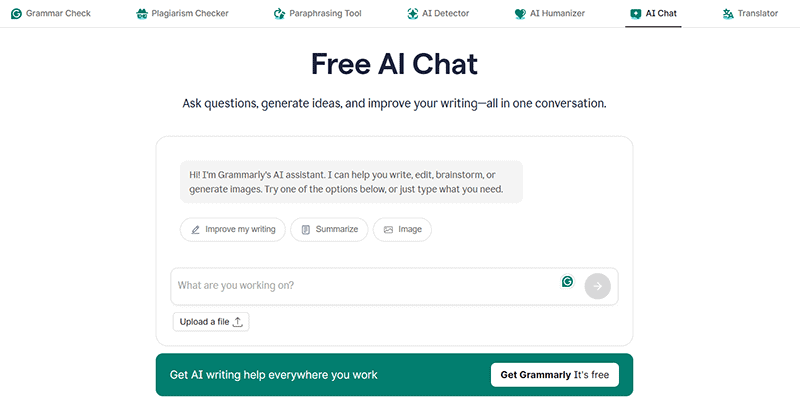
Grammarly now includes generative AI tools to aid in research, writing, and editing, including a “Free AI Chat.”
What can a kid do with it?
Kids can ask Grammarly to brainstorm ideas, draft responses, rewrite paragraphs, modify tone, and produce written content, in addition to the traditional proofreading functions.
Pro accounts, standard in Grammarly for Education contracts, also include AI grading (simulates instructor feedback and estimates grades) and AI Detector & Rewriter Agent (flags potentially AI-generated content).
Can parents disable it?
Grammarly allows users to turn off generative AI features through their account’s Feature Customization settings. However, on personal accounts, this is a user-controlled setting and not a parent-protected restriction. It can easily be turned back on.
Administrators of Grammarly for Education can manage access to generative AI.
Brave Parenting recommendation
Parents should consider restricting personal (free) accounts to Grammarly, especially if the child is weak in writing and composition. The AI chatbot remains available to free users, though with a limited number of prompts/month. A basic proofreading alternative would serve a child’s learning far better than this.
If a student has access to a Grammarly Pro account through their school, parents should review their access to the generative AI features. If access has not been restricted by the school administration, gather other parents and petition to have it disabled for all students.
 5. Canva – Magic Studio & Canva AI
What is Canva?
Canva is a popular online design platform for creating presentations, posters, reports, infographics, videos, and other visual projects. Canva for Education is widely used in schools for its ability to produce quality graphics with a simple drag-and-drop interface.
What AI is built in?
Canva offers many generative AI features through Magic Studio and Canva AI. These include Magic Write, Magic Design, image-generation tools, and other AI-assisted features.
Depending on the account type (basic/Pro/Education Pro) and the features enabled, Canva can generate written content, images, presentations, and design elements from user prompts.
What can a kid do with it?
Kids can ask Canva to draft text, brainstorm topics, generate images, develop design ideas, and create visual content.
Depending on the project, Canva’s capabilities can blur the line between designing a presentation and generating its academic content.
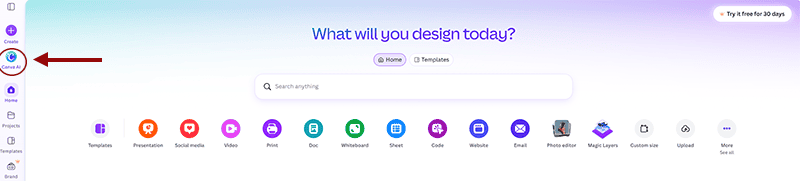
Even in the basic/free account for personal use, Canva AI is readily available to start a chat, letting you tell Canva what you want to create.
Can parents disable it?
Canva for Education administrators have access to control AI features, including Magic Write, Magic Design, Canva AI, and image-generation tools. According to Canva, most Magic and AI features are disabled for students by default, but certain features like Magic Media, Dream Lab, and Magic Insights are enabled.
Personal Canva accounts do not allow disabling AI features.
Brave Parenting recommendation
Parents should verify whether a child is using a personal account or a school-provided Education account.
Personal accounts assume access to generative AI features. Parents must weigh the benefits with the potential loss of learning foundational research, writing, creating, and design skills.
When using a Canva for Education account, parents must review which AI capabilities are enabled. If generative AI features are enabled and conflict with learning goals, contact the administrator and request that they be changed.
 6. Quizlet – AI Study Tools & Ask Quizlet
What is Quizlet?
Quizlet is a digital education and learning platform designed to help students learn through visual flashcards, practice tests, and interactive games. Students commonly use Quizlet to memorize vocabulary, review historical facts, prepare for tests, and study course material.
It’s available on web browsers as well as through iOS and Android apps.
What AI is built in?
Quizlet now offers multiple AI-powered educational features, including AI-generated study guides, practice tests, flashcards, and homework assistance.
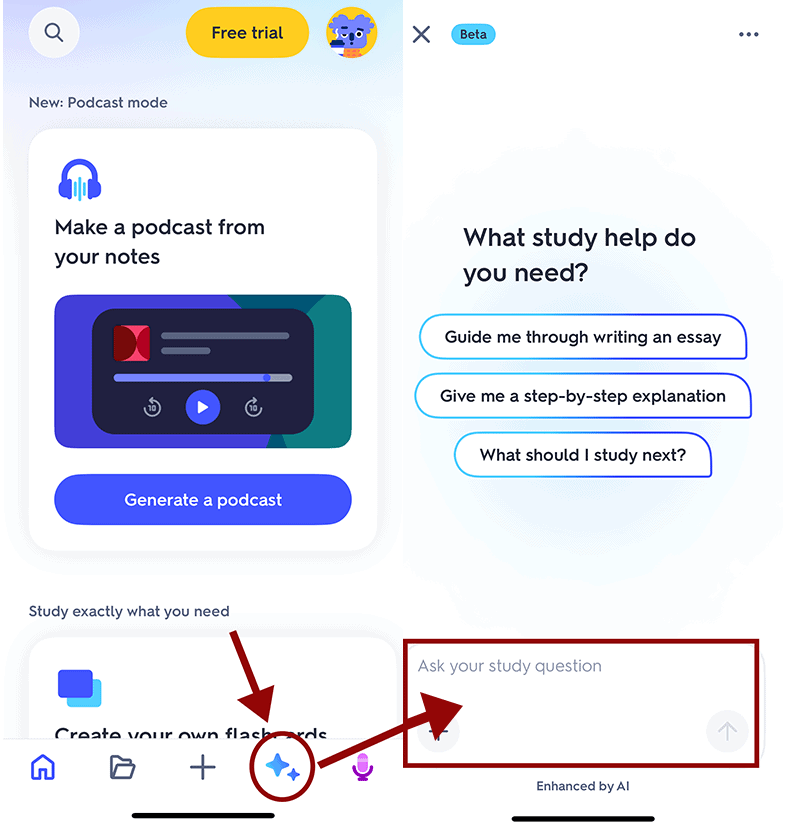
It also offers Ask Quizlet, a conversational study assistant that allows students to ask questions and receive explanations based on material they are studying.
What can a kid do with it?
Kids can upload notes, documents, or images and ask Quizlet to summarize material, make flashcards, explain concepts, generate study guides, and create practice questions.
Can parents disable it?
Quizlet does not allow disabling all AI features across the platform.
There are age-based and subscription-related limitations on certain AI features such as Ask Quizlet, which requires users to be 14 and older in the U.S.
Brave Parenting recommendation
Much of Quizlet’s core features now have AI built in; therefore, parents should restrict its use for children younger than high school. Traditional flashcards provide better educational benefit at that age.
If Quizlet is accessible through the child’s school, parents should establish clear expectations about AI-generated explanations and definitions. While Quizlet can be used for legitimate study, there is a temptation to hand off the heavy lifting that facilitates learning to the platform.
Biblical Perspective: The Pursuit of Wisdom
With Artificial Intelligence becoming so ubiquitous and seemingly irreversible, it can be tempting to go along with the winds of change. This is the future; my child will need to know how to use AI.
Scripture, however, grounds us in truth that is unchanging. Kingdoms and nations will rise and fall. Philosophies and traditions will come and go. Technologies and social trends will blossom and wither away. But the word of the Lord endures forever (1 Peter 1:25).
Throughout Scripture, we are instructed to pursue wisdom and understanding.
The beginning of wisdom is this: Get wisdom. Though it cost all you have, get understanding (Prov 4:7).
Proverbs 2:1-6 describes an active pursuit: receiving, treasuring, listening, calling out, seeking, and searching for wisdom as a hidden treasure. Verse 6 reminds us that wisdom ultimately comes from the Lord.
My son, if you accept my words and store up my commands within you,
2 turning your ear to wisdom and applying your heart to understanding—
3 indeed, if you call out for insight and cry aloud for understanding,
4 and if you look for it as for silver and search for it as for hidden treasure,
5 then you will understand the fear of the Lord and find the knowledge of God.
6 For the Lord gives wisdom; from his mouth come knowledge and understanding.
Today, children can easily confuse information with wisdom. An AI chatbot produces answers, explanations, and essays in seconds. But obtaining an answer is not the same as developing the knowledge and understanding necessary to develop an answer yourself.
Children rarely appreciate the inherent value in the struggle of learning. Outsourcing can feel wise. This is why they need parents to protect their opportunities to struggle, wrestle with difficult concepts, make mistakes, persevere, and grow.
Our goal in restricting AI is to teach children how to pursue wisdom, not just to prevent children from accessing a new technology. When children can get easy answers, polished essays, and simulated friendships with a simple prompt, we must ask: Who are they becoming?
We want children who pursue wisdom and grow into diligent, discerning, thoughtful, and wise adults. Faithful followers of Christ who know how to pursue and defend truth rather than simply prompt a machine to produce answers. And that wisdom only comes from the Lord.
Read also A Biblical Framework for AI: Four Questions for Christian Parents
DOWNLOAD Full Chart of Hidden AI in Common Apps